




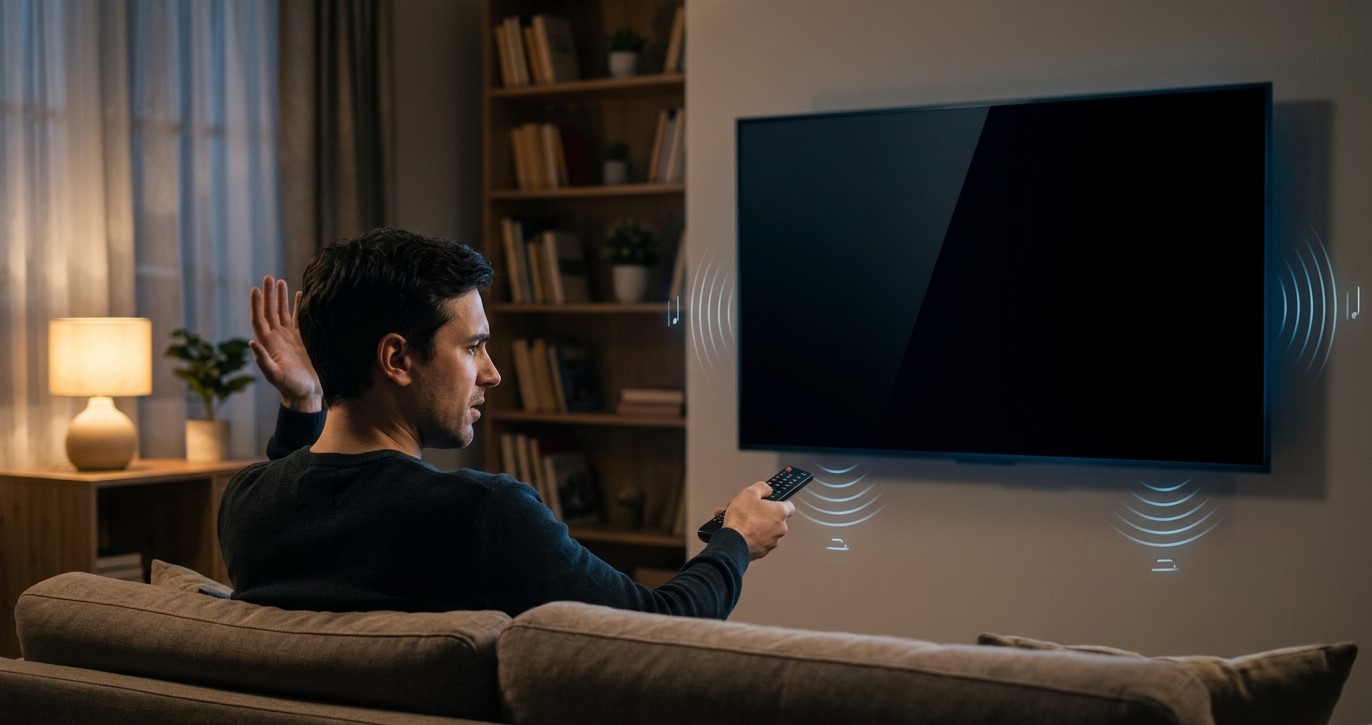
You tune to a channel, the sound plays normally, and the screen stays black. Other channels look fine. This is the mirror image of the “picture but no sound” problem, and it usually means your device is receiving the stream but can’t display the video part of it. In this guide, we’ll explain the most common causes, how to tell them apart, and what to try on your Indian IPTV Box when a channel on IPTV India plays audio over a dark screen.
Table of Contents
- Why Audio Can Work While Video Doesn’t
- Cause 1: Video Codec Your Device Can’t Decode
- Cause 2: Resolution, Frame Rate, or HDR Mismatch
- Cause 3: HDMI and HDCP Handshake Problems
- Cause 4: App Decoder and Display Settings
- Cause 5: Device Limits and Overheating
- Cause 6: A Problem With the Channel Itself
- Quick Checks First
- Step-by-Step Troubleshooting
- What to Tell Support
- FAQs
Why Audio Can Work While Video Doesn’t
A stream carries video and audio as separate tracks, each compressed with its own codec. Audio is usually much easier to decode than video. So a device that struggles with a particular video format can still play the sound without any trouble.
That’s why the problem tends to follow specific channels. Different channels can use different video codecs, resolutions, and frame rates, and not every box, app, or TV handles all of them equally.
Cause 1: Video Codec Your Device Can’t Decode
Common video codecs include:
- MPEG-2: An older format still used by some broadcast feeds
- H.264 (AVC): Widely supported almost everywhere
- H.265 (HEVC): More efficient, and increasingly common, but older or budget devices may lack hardware support for it
- AV1: A newer codec that may need recent hardware to play smoothly
If a channel uses a codec your box can’t decode, you may get audio with a black screen, or choppy and corrupted video. This is especially common when only your higher-quality or newer-format channels fail while standard ones work.
Cause 2: Resolution, Frame Rate, or HDR Mismatch
Even with a supported codec, the stream’s characteristics can exceed what your setup handles:
- Resolution: A 4K stream may be too demanding for an older box, or your TV or HDMI cable may not support it
- Frame rate: Some channels run at 50 or 60 frames per second, which needs more processing and bandwidth than 25 or 30
- HDR formats: HDR content can fail if your TV, box, or cable doesn’t support it, or if the settings don’t agree
- Refresh rate switching: Some boxes change the output to match each stream’s frame rate. If your TV struggles with the change, it may go black briefly or stay black
If a black screen appears on your 4K or high-frame-rate channels but not on standard HD ones, this is a strong clue.
Cause 3: HDMI and HDCP Handshake Problems
Video travels to your TV over HDMI, and the two devices have to agree on how to connect:
- HDCP (copy protection): Some content requires a verified, protected connection. If the handshake fails, you may get a black screen while audio continues. A loose cable, a faulty port, or an extra device in the chain (such as a splitter, switch, or older receiver) can break it
- Cable limits: An older or low-quality cable may not carry the bandwidth for higher resolutions or HDR
- Port differences: Some TVs support the latest features on only one or two HDMI ports
- Chained devices: Running video through a soundbar, receiver, or capture device can cause compatibility problems
If the screen goes black after you add or change equipment, suspect this stage first.
Cause 4: App Decoder and Display Settings
Your IPTV app has choices that affect video:
- Hardware vs software decoding: Hardware decoding is faster but may not support every format. Software decoding is more flexible but needs more processing power. Switching between them can fix a black screen
- Video output or renderer settings: Some players offer different rendering options, and one may work where another doesn’t
- Aspect ratio or zoom modes: Occasionally an odd setting can push the picture off-screen, though that usually shows distorted video rather than a pure black screen
- App bugs or outdated versions: A version that doesn’t support a codec or feature well can fail on certain channels
- Subtitle or overlay glitches: Rarely, a broken overlay layer can hide the picture
Cause 5: Device Limits and Overheating
A struggling box can drop video while keeping audio alive:
- Low memory or storage, especially with many apps open or a nearly full device
- Overheating, which can cause the system to throttle performance
- Long uptime, where accumulated glitches build up over weeks without a restart
- An underpowered processor, common in older or entry-level devices when decoding high-bitrate video
If the black screen appears only after the box has been on for a long time, or only on demanding channels, resource limits are likely involved.
Cause 6: A Problem With the Channel Itself
Sometimes nothing in your setup is wrong:
- The source feed has a video fault while audio continues
- The provider’s encoding changed, producing a stream some devices can’t play
- A temporary glitch during maintenance or a broadcast change
- A missing keyframe at tune-in. Video streams need a starting frame, and some feeds take a few seconds to provide one, which can look like a black screen at first
Signs that the channel is the problem: it’s black on every device and in every app, other subscribers report the same issue, and changing your settings makes no difference. If it clears up after a minute or later in the day, it was probably temporary.
Quick Checks First
Rule out the simple causes:
- Wait 10 to 20 seconds. Some streams are slow to start
- Switch to another channel and back
- Test several channels, including SD, HD, and 4K, to see whether a pattern appears
- Try the same channel on another device, such as a phone or a second box
- Check the HDMI cable and port, and reseat the connectors
- Confirm the right TV input is selected
Step-by-Step Troubleshooting
Work through these in order:
- Switch channels and return to force a fresh connection
- Restart the IPTV app completely
- Restart your box and your TV, unplugging them briefly if needed, so they renegotiate the HDMI connection
- Try a different HDMI port and cable, ideally a certified high-speed cable
- Remove extra devices from the chain, such as splitters, switches, or receivers, and connect the box directly to the TV
- Lower the box’s output resolution temporarily, for example to 1080p, and test the channel
- Turn off HDR or Dolby Vision output in the box’s display settings, if the option exists
- Disable automatic frame rate or refresh rate matching, if your box offers it
- Switch the app’s decoder setting between hardware and software, and test again
- Try another player or app, if your provider supports more than one
- Clear the app’s cache, free up storage, and close other apps
- Update the app and the box’s firmware, and update the TV’s firmware too
- Let the device cool down if it feels unusually hot, and improve ventilation
- Test on another TV or display, if you have one, to isolate the TV from the box
- Test a different channel quality, such as an SD or HD version of the same channel, if your lineup offers one
- Reset the display settings to default and reconfigure one change at a time
- Contact support if the channel stays black everywhere
If the problem started right after an update or a new device, undoing that change is often the fastest route.
What to Tell Support
Give them details they can act on:
- The channel name and the symptom: “audio plays, screen is black”
- Whether it affects one channel, a group of channels, or all channels, and whether the affected ones are 4K, HD, or SD
- Which devices, apps, and TVs you tested, and what happened on each
- Your equipment setup, including any soundbar, receiver, splitter, or switch
- What changed beforehand, such as an update or new hardware
- What you’ve already tried, including decoder and resolution changes
- Any stream details your app shows, such as the video codec, resolution, or frame rate
Specifics like these can point straight to the cause and save a lot of back and forth.
FAQs
1. Why does the screen go black but I still hear audio?
Your device is receiving the stream but can’t display the video, often because of an unsupported video codec, a resolution or HDR mismatch, an HDMI handshake failure, or a decoder setting problem.
2. Why does it only happen on some channels?
Different channels use different video formats, resolutions, and frame rates. A box or TV may handle most of them but fail on one it doesn’t fully support.
3. Could my HDMI cable be the cause?
Yes. A faulty, loose, or older cable, or an extra device in the chain, can break the connection or limit bandwidth, which may blacken the screen on demanding streams.
4. Will switching between hardware and software decoding help?
Often it does. Some channels play only with one decoder, so switching in the app’s settings is a worthwhile test.
5. Does my Indian IPTV Box affect which channels display properly?
Yes. Its hardware and software determine which codecs, resolutions, and HDR formats it can handle. Keeping firmware and the app updated can add support.
Bring the Picture Back
A black screen with sound is almost always a format or connection mismatch, and most cases clear up with a few targeted changes. Pair a dependable IPTV India provider with a capable, up-to-date Indian IPTV Box and a solid HDMI setup for a picture that shows on every channel. Explore our IPTV plans today and enjoy your favorite channels with both sound and picture.
About The Author